
For all of you who saved SHSH blobs for iOS 6.0 to 6.1.2 through
Cydia, you will be disappointed to hear that Saurik has took to his blog (http://www.saurik.com/id/15)
to explain that they will not be usable. This means those of you who
were hoping to downgrade at some point using the TSS data Cydia saves automatically, will be straight out of luck.
In this lengthy blog post Saurik goes on to explain how SHSH blobs, APTickets and TSS works and many other things regarding the actual reason why all of the SHSH blobs saved through iOS 6.0 to 6.1.2 became corrupt and unusable. If you are interested in all of those details you can check out the blog post yourself, as it is very technical and probably not very useful to the average person.
The bottom line is, unless you saved your SHSH and APTickets manually to your computer using a tool like iFaith or TinyUmbrella then you will not be able to downgrade or even re-restore to the same firmware version you are running now. As Saurik points out himself, only those with A4 devices are really affected because only those devices can be downgraded, so for most of us this won’t even concern you.
In closing, Saurik notes that those who wish to eventually downgrade
their A4 device should upload their TSS information to Cydia using a
soon to be released version of RedSn0w or iFaith if you have access to a
Windows computer (so it will always be on hand).
Source : http://www.ijailbreak.com
In this lengthy blog post Saurik goes on to explain how SHSH blobs, APTickets and TSS works and many other things regarding the actual reason why all of the SHSH blobs saved through iOS 6.0 to 6.1.2 became corrupt and unusable. If you are interested in all of those details you can check out the blog post yourself, as it is very technical and probably not very useful to the average person.
The bottom line is, unless you saved your SHSH and APTickets manually to your computer using a tool like iFaith or TinyUmbrella then you will not be able to downgrade or even re-restore to the same firmware version you are running now. As Saurik points out himself, only those with A4 devices are really affected because only those devices can be downgraded, so for most of us this won’t even concern you.
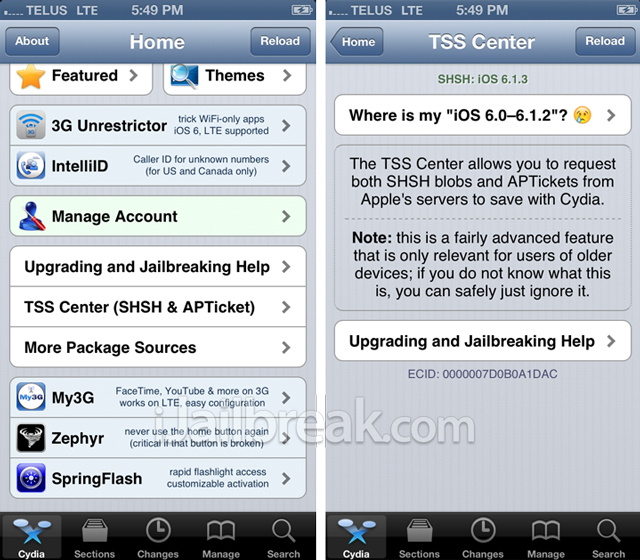
The set of devices that are able to run iOS 6 and that are also old enough to be subject to this exploit is actually fairly small: only the iPhone 3G[S], iPhone 4, and the 4th generation iPod touch meet these requirements. In particular, no iPad, nor any recent iPhone (not even the iPhone 4S) has any known way to use cached iOS 6 TSS information. This means that 74.2% of Cydia users are not affected at all.If anything this is a really good reminder to always manually save your SHSH blobs. When you rely on an automated service you are always taking the chance something could go wrong, and this time it indeed did! To find out whether you were affected by this issue, simply open up Cydia, look for the new TSS Center (labelled TSS Center (SHSH & APTicket)) and you will be able to see the blobs that have been saved for your device.
Secondly, for the remaining 25.8% of Cydia users for which cached iOS 6 APTickets could be useful, by far the primary purpose is to restore or otherwise recover the version of iOS you are currently running untethered. As an example, a user is currently running 6.1.2 and accidentally upgrades to 6.1.3. Alternatively, they accidentally break their iOS installation so badly that they need to restore.
In either of these two use cases, the alternative to an APTicket exploit is to upgrade to iOS 6.1.3; as this scenario is only applicable to people running older devices (those subject to limera1n), iOS 6.1.3 is still jailbreakable (as should all future versions of iOS on these devices), but the result will not be an untethered jailbreak: many users (including myself) really hate using tethered jailbreaks.
Thankfully, this situation is actually fairly easily solved: redsn0w has the ability to dump the full TSS information from a device (also using that same limera1n exploit). I thereby encourage users of devices capable of being exploited by limera1n (the iPhone 3G[S], iPhone 4, or 4th generation iPod touch) to download this tool right now and use it to upload complete TSS information.
Source : http://www.ijailbreak.com
